Canteen · corporate catering · set meals
Canteen POS and employee meal accounts
Set meals and portions by weight stay on the cashier ticket. A daily limit helps control meal spending. POS, kitchen and inventory are available on Premium.
Premium: 799 ₺ per month
Free: QR menu with up to 50 items and 100 orders a month. POS starts on Basic; inventory on Premium. No card for sign-up.
Enable corporate accounts first. Your team records top-ups; there is no separate employer payment portal.
- Daily menu and QR pre-orders
- Account-code payment with balance and daily-limit checks
- Kitchen display and recipe-based stock deductions

- locations on Premium
- 10
- devices on Premium
- 20
- auto-translation languages on Premium
- 25
- employee spending report
- CSV
What it gives each part of the venue
Serving line
- Build a set meal and a portion by weight on the POS, take payment by employee account code
- Show the employee the order and total on the customer display
- Out of a side dish — put it on the stop-list and it disappears from the menu and the POS
The employee at lunch
- Let them choose lunch in advance: the menu by QR or link, with nutrition and allergens
- Lunch subscriptions require enabling and are available on cenaly.com; period payments are marked manually
- Allow paying for lunch from the menu by phone and account code — with the employer's allowance
Kitchen
- Pre-orders for the kitchen; scheduled subscription orders are generated only on cenaly.com
- Kitchen screen and printing by station through the bridge
- Deduct raw materials by recipe when dishes are sold
Manager
- Check balance, daily allowance limit and today's spend — per employee
- Control cost and stock, upload invoices by photo
- Export employee spending as CSV; this is not automatic employer billing
What you need to start
A POS on the serving line
A tablet or computer with a browser, or the Android app; a customer display is an optional second device.
Scales and a printer
Check scale and printer models and the Masamenu.tr bridge driver. Weight can be entered manually. Fiscal receipts require a separate country-specific check.
The employee list
Enable corporate accounts, add an employer and employee accounts. Record top-ups manually after settling with the employer. POS uses an account code; the menu uses phone and code when self-checkout is enabled.
Menu of the day and set meals
Set the days and hours dishes are shown, build set meals and fill in the recipes.
From a menu to a tested workflow
- 1
Create an account and location
Select your venue format. Add a few items manually, check prices and the menu language. Sign-up does not require a bank card.
- 2
Prepare menu and connections
Import and AI tools depend on plan and payment terms. Check recognised items. For POS, printing and payments, verify equipment and availability in your country.
- 3
Test an order before launch
Follow the guest journey by QR. On an eligible paid plan, test POS, kitchen, printing and shift closure separately.
See what you will be working with
Captions describe work screens and required plans. The linked demo shows only the guest menu, not POS or inventory.
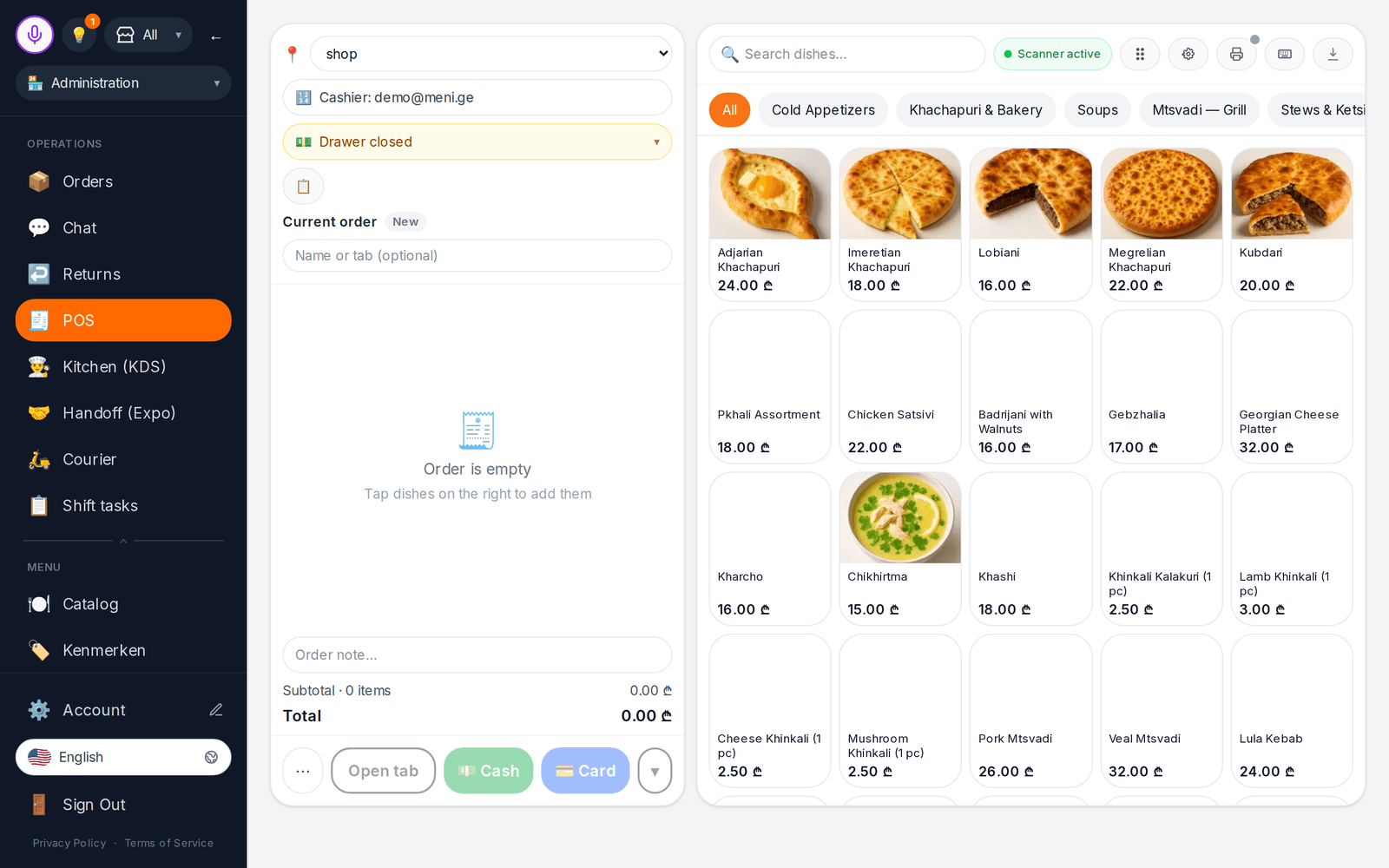
Serving-line POS
Set meals, dishes by weight, payment from the employee account.
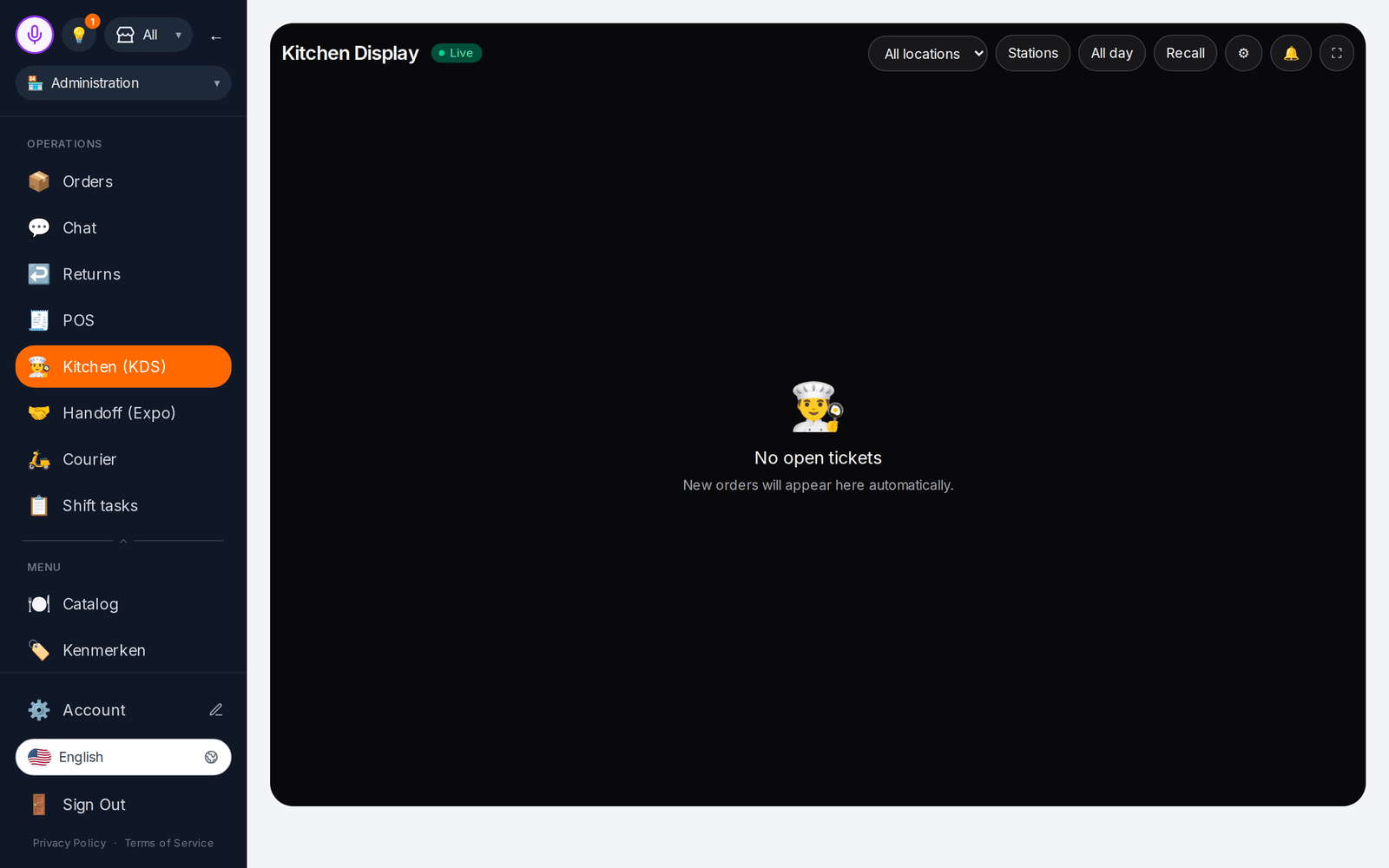
Kitchen screen
Orders by station, timers, readiness and hand-off. Lunch subscriptions are configured in a separate section.
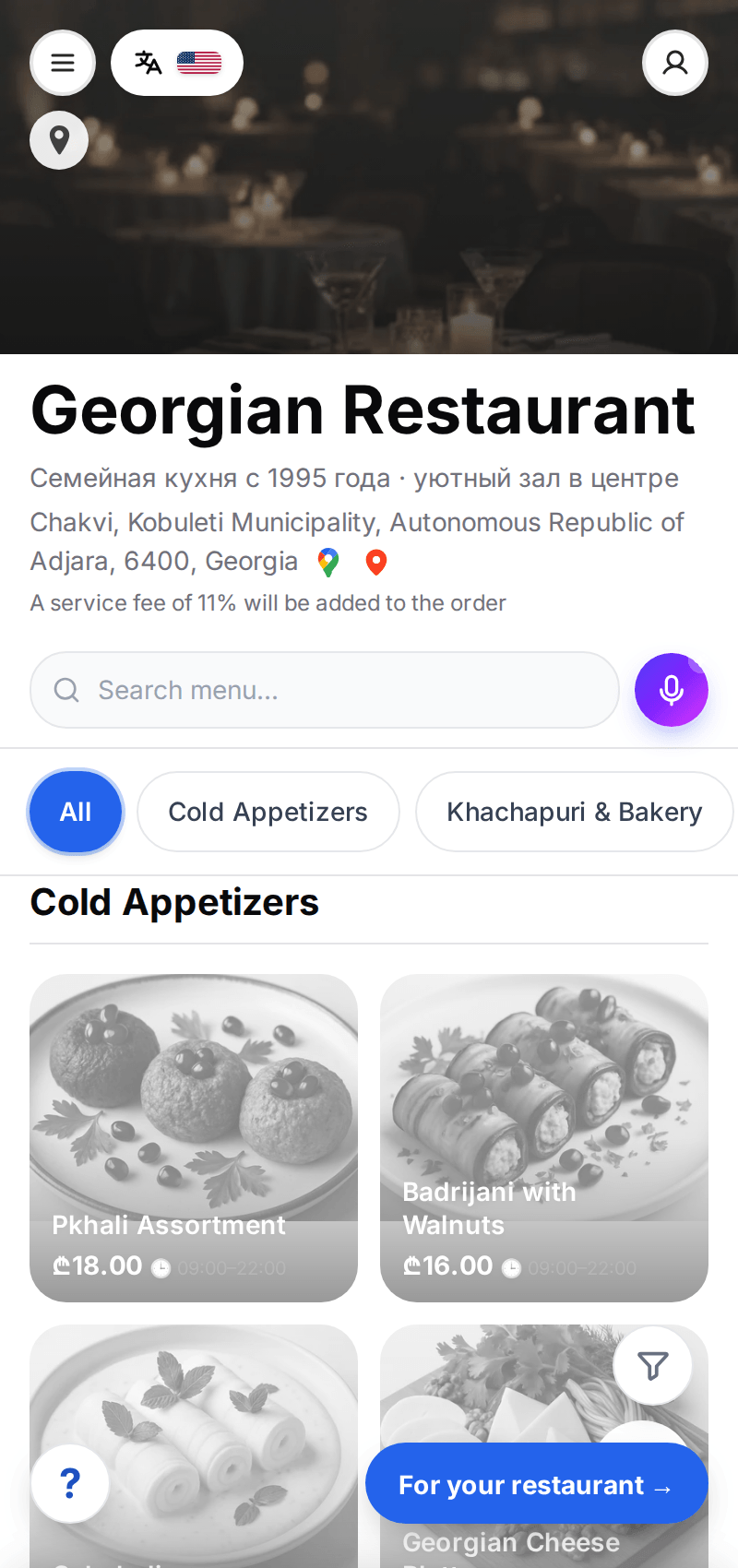
Menu of the day
Weekly schedule, set meals, nutrition and allergens.
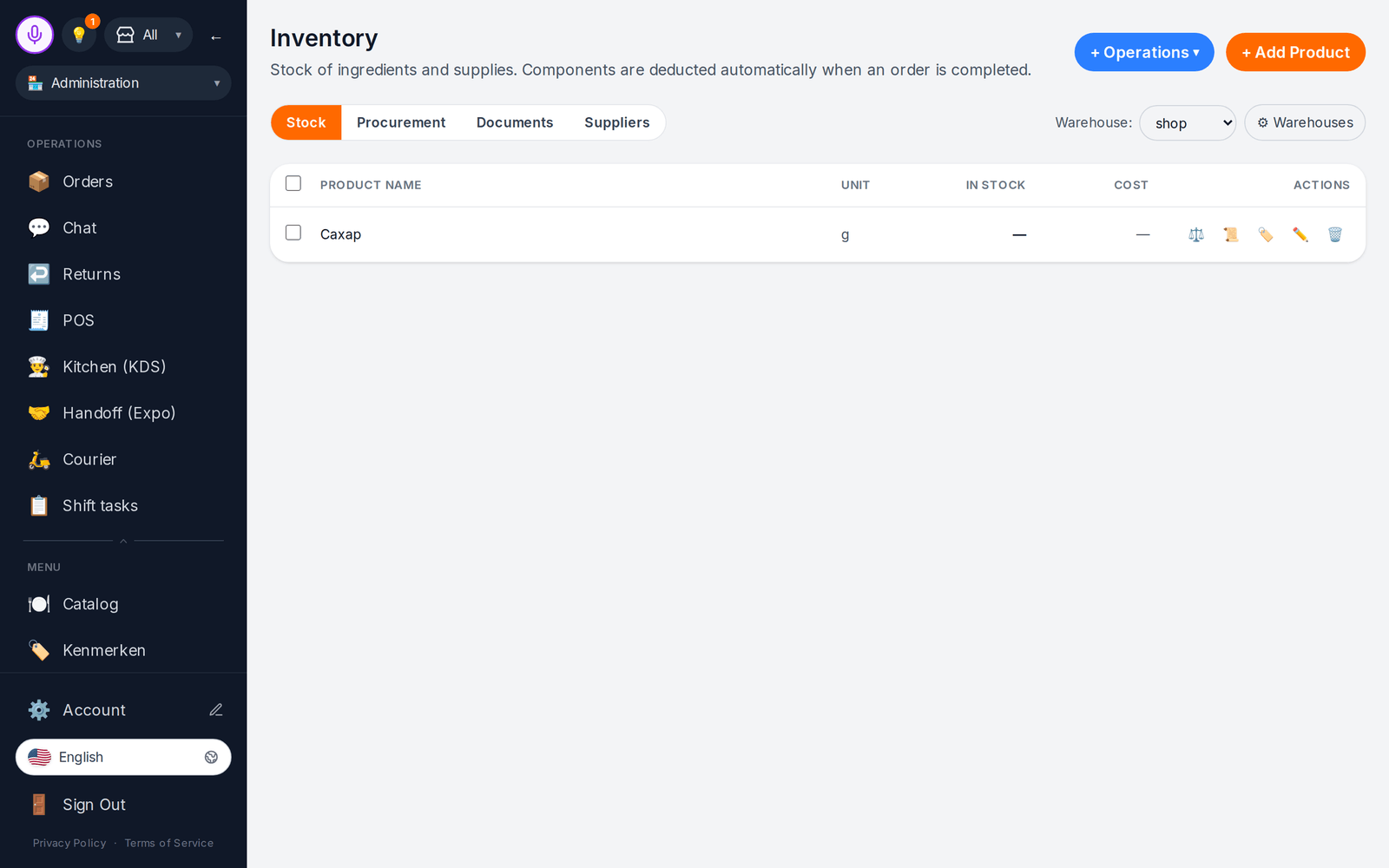
Inventory
Deduction by set-meal recipes, invoices by photo, stock.
From opening to closing
Morning
The daily menu opens on schedule and employees place pre-orders. If lunch subscriptions are enabled on cenaly.com, their orders are generated on schedule; an administrator marks period payments.
Lunch peak
A set meal and a salad by weight on the tray. The POS works out the total, the employee sees the order on the display and gives the account code. Before charging, the system checks the balance and the daily limit.
Top-ups and control
The employer has transferred a meal advance. You top up the accounts from a list and check the daily limits. Employee spend is exported as a table — the employer sees what was spent over the period.
Scenarios come from product settings and features, not testimonials: we don't promise "+30 % to the ticket" until we have measured it at your venue.
What it costs
Plan for the basic workflow described here
Premium
799 ₺ per month
7 668 ₺ per year when billed annually
An account subscription with limits for locations, devices, items, orders and languages. Equipment, acquiring and paid AI operations may cost extra.
Features and terms
- Premium: up to 10 locations, 20 devices and 25 auto-translation languages
- Unlimited items and orders; scheduled daily menus
- Serving-line POS, kitchen display, inventory and recipes
- Corporate accounts are enabled separately; daily limits and manually recorded top-ups
- Lunch subscriptions are enabled separately on cenaly.com; period payments are marked manually
- Scales and printing need compatible equipment connected through the bridge
Start with a free menu
One location, up to 50 items, 100 orders a month and 3 auto-translation languages. POS and kitchen start on Basic; inventory on Premium. Some features depend on country and cloud.
Create an accountFree: QR menu with up to 50 items and 100 orders a month. POS starts on Basic; inventory on Premium. No card for sign-up.
What to consider before you start
- The employer's access-control pass card is not read directly — the employee is identified by the account code (at the POS or in the menu by phone and code).
- Scales connect through the bridge as POS peripherals; the list of verified models is in the hardware help — check your model before launch.
- Employee spending is exported as CSV. There is no automatic allowance transfer to 1C or employer payment portal.
- Orders from delivery marketplaces do not yet reach the POS automatically — the integrations are being connected.
Check required connections and a test order before switching systems.
Frequently asked questions
We subsidise meals. How do we keep spend within the daily limit?
Set a company-wide daily limit per employee or an individual one for a specific person. The system checks the balance and the limit before charging: at the POS by account code, in the menu by phone and code if you have allowed that payment. Nothing above the limit is charged to the account. Balance and the day's spend are visible in the table, and spend over a period can be exported.
Portions on the line vary in weight. Will the POS handle it?
Yes. Set a price by weight: the POS takes the portion weight from the scales through the bridge or accepts manual entry and works out the total. The receipt shows grams and the amount.
How do we know in advance how many lunches to cook?
Start with the day’s pre-orders. On cenaly.com you can enable lunch subscriptions with scheduled order generation and manually marked period payments. You decide the buffer for guests without pre-orders.
Will our equipment work?
The menu opens on a guest phone. POS needs a supported browser or app; printing, scales and scanners depend on the model and bridge driver. Test your devices before connecting them.
What happens if internet goes down?
The first menu visit requires a connection: a CDN is not an offline mode. Already-loaded POS and a local bridge have limitations. Do not treat a fully offline shift as a ready workflow without testing.
How do we keep our data when switching?
Save the original data before switching systems. In sections that offer export, check the fields and file format you need. A universal one-click transfer of all data is not promised.
Can we import a menu?
Add items manually or use import from a file, photo or supported source where your plan allows it. Check the results; timing depends on source quality.
How many locations can we manage?
Free covers 1, Basic up to 3 and Premium up to 10. Devices, items, orders and auto-translation have their own limits. See pricing for exact terms.
Details for every screen are in the help centre. Where to start →
Start with the menu for the next lunch
Add dishes and open the menu on a phone. QR menus are free with limits; POS, kitchen and inventory in this workflow use Premium. Enable corporate accounts separately.
Create your menu for freeFree: 1 location, 50 items, 100 orders a month and 3 auto-translation languages. Equipment and paid operations have their own terms.