Free · slots from a live schedule
Let clients book from your schedule
For salons, studios and private practices. Clients choose a service, specialist and time on your site; the appointment reaches the Masamenu.tr journal after the server responds.
The widget and basic journal are free. Add services and schedules, then enable bookings. Email automation and funnel analytics need a separate paid add-on.
- Slots reflect schedules, breaks and occupancy
- Conflicts checked when booking
- Manage appointments through a private link
- for the widget and the journal — no charge per booking taken
- $0
- steps: service, specialist, time, contacts — the unnecessary ones are skipped
- 4
- days in the date strip, with days off marked
- 14
- languages supported: four built in, others need a language pack; English is the fallback
- 45
How it works for the visitor
- 1
The client picks a service
The list comes from your service menu with duration and price. If there is only one service, the step is skipped and they go straight to times.
- 2
They pick a specialist or “anyone available”
If only one person performs that service, they are attached automatically. “Anyone available” lets the system pick whoever is free in that slot.
- 3
They take a free slot
A 14-day date strip and grid based on schedules, breaks, leave and occupancy. The nearest-time chip leads to the first available slot; 17:30 in the example does not promise availability today.
- 4
They leave a name and a phone
The widget waits for the server before saying “you’re booked”: then it shows the booking number, a Telegram reminders button, a calendar file and a “manage booking” link.
Set up in three steps
Create an account and add your site
Signup opens setup for the selected product. Have your domain and permission to insert code ready.
Configure and install
Follow your platform instructions. Blocking trackers before consent requires the early CMP script, not just the shared async tag.
Test your published site
Enable the widget and try the visitor action on the published page. Settings may appear after the cache refreshes.
The tag
<script src="https://cdn.masamenu.tr/site/v1.js" data-domain="your-site.com" async></script>Shared widget tag. See the separate CMP instructions for blocking trackers before consent.
Set bookings up the way you work
Shorten the path from interest to booking
A four-step wizard that skips what isn’t needed: one service goes straight to times, one eligible specialist is attached automatically. The contact step shows a summary with “change” links, and the name and phone from the previous booking are prefilled. Best for practices with one or two services.
Offer only real availability
The grid is computed by the same core as booking on our storefront: the location’s booking hours, staff schedules and one-off days, holidays and breaks, service buffers and current occupancy. Best for anyone with a live schedule rather than a “call us” page.
Link straight to a service or a specialist
`data-service`, `data-master` and `data-open` open the widget on the right step — a “Book Anna for a haircut” button next to her photo. A broken id quietly falls back to the full wizard. Best for sites with staff and service pages.
Confirm a booking, not a form submission
A successful submission is not yet an appointment: the widget waits for server confirmation. If the slot was taken meanwhile, the client sees it, the board is re-read and they return to the grid. Without an answer it honestly says “processing”, and a double click never creates a second booking. Best where two people go for the same slot.
Take a deposit without collecting cards yourself
With a deposit policy and a live payment provider, the client sees the amount at the contact step and pays on our secure page — no card is entered on your website. Best where no-shows are the problem.
Catch the ones who missed out
The waitlist collects an email when a day is full and does not hold a slot. Free-slot notifications are part of Appointment autopilot; check the add-on connection and terms.
Where it pays off
Salons and barbershops
The client picks a specialist and a slot in the evening, and in the morning you see the appointment in the journal with the rest.
A specialist’s page
`data-master` opens the widget on their schedule, so the visitor doesn’t hunt for the right person in a list.
A service page
`data-service` leads to a specific treatment: after reading about a manicure the client doesn’t have to find it again.
A booking landing page
`data-open="true"` opens the wizard as the page loads — made for paid campaigns.
A QR code in the studio or on a card
An action link opens the booking for the right service straight from printed material.
A clinic with several specialists
“Anyone available” covers the case of “I don’t mind who, as long as it’s today”.
How it looks on your site
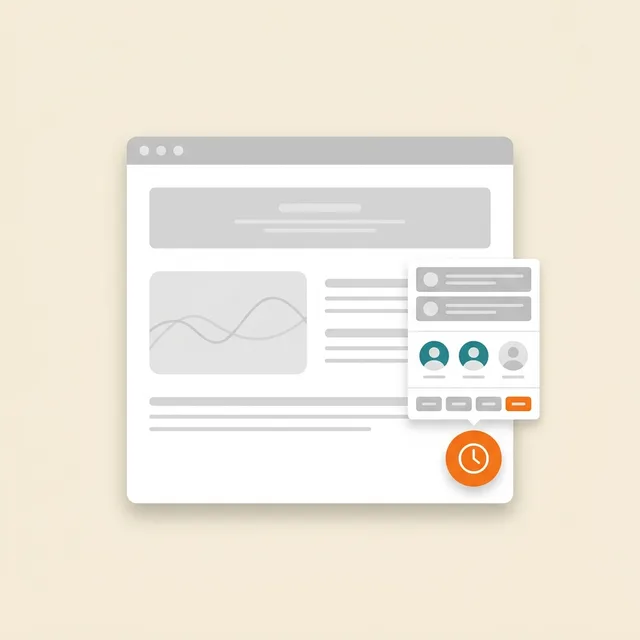
Example interface. Customise colours, position and labels, then check your page on desktop and mobile.
On desktop
On mobile
On your side: The widget reads only files your location already publishes: services from the menu, specialist schedules and time off, the bookings board. No second schedule to maintain for the website.
On desktop
On mobile
On your side: The appointment lands in Appointments and in Leads. Sent ≠ booked: the widget waits for the server to confirm, and until it does it honestly says “Your request is being processed”.
On desktop
On mobile
On your side: The waitlist collects an email when a day is full and does not hold a slot. Free-slot notifications are part of Appointment autopilot; check the add-on connection and terms.
Where it goes
Exact menu names and plan requirements, taken from each platform’s own help center.
Sites built with our website builder ship with the widgets already wired — nothing to paste.
Step-by-step guides per platform — in the help center →Pricing
Free
- The widget and the appointment journal are free — no limit on bookings, staff or sites
- Telegram reminders are free after the venue connects its bot and the guest subscribes; without those steps no messages arrive
- Appointment autopilot is paid separately: automated booking-change emails, waitlist notifications and the funnel panel. See the catalogue for terms
- There is no commission per appointment, however many arrive from the site
- We charge nothing per appointment, per specialist, per visitor or per domain — only the automation on top of the widget is paid
What is included and what costs extra
Basic versions of eight widgets are free. Table booking, popups, help and legal pages on external sites are extensions. Connected services can cost extra.
With and without
| Without the widget | With the widget | |
|---|---|---|
| When people can book | ✕ Booking is possible only while someone is answering calls and messages | ✓ Clients book at night and at weekends, with no call and no sign-up |
| Where slots come from | ✕ Free time lives in the manager’s head or in a paper diary | ✓ Slots are computed from schedules, breaks, holidays and service buffers — as in your journal |
| Two people, one slot | ✕ A clash shows up after the call, and someone has to ring back | ✓ The slot goes to the first booking the server confirms; the second person returns to the grid |
| Reminders | ✕ Visits are reminded about by hand, or not at all | ✓ Clients switch on Telegram reminders and add the visit to their calendar |
| Cost | ✕ Every booking costs manager time: check the schedule, call back, write it down | ✓ The widget and the appointment journal are free, with no limit on bookings or staff |
Honest about the limits
- The widget needs booking enabled for the location and at least one service item in the menu: without them it quietly doesn’t show — we don’t draw empty panels.
- There is deliberately no cancelling or rescheduling inside the widget: that happens on the secure page behind the “manage booking” link from the confirmation.
- Times are shown in the venue’s time zone and labelled as such — slots are not converted into the client’s zone.
- A deposit is only available with a deposit policy set and a live payment provider for your country and currency.
- The waitlist holds nothing: it is a “tell me when it frees up” request, and the client sees that before sending it.
- The widget changes the page layout, so on sites built with our website builder it is off by default — booking there is native.
- Network failures trigger retries and a browser queue for up to an hour. Delivery depends on connectivity and browser storage. Without a server response the widget shows processing, not a confirmed appointment.
- The waitlist collects an email when a day is full and does not hold a slot. Free-slot notifications are part of Appointment autopilot; check the add-on connection and terms.
- Telegram reminders are free after the venue connects its bot and the guest subscribes; without those steps no messages arrive
Who it's for
- Beauty salons, barbershops and nail studios
- Massage, cosmetology, private practices and clinics
- Any service booked to a time and to a person
What an appointment widget is and when you need one
An appointment widget is a button behind which a client picks a service, a specialist and a time themselves. What sets it apart from a contact form is that it doesn’t say “leave a request” — it shows the specific slots that are genuinely free, and ends with a confirmed appointment in the journal.
It belongs wherever bookings are made to a time and to a person: salons, barbershops, cosmetology, massage, private practices. Especially when the decision to book is made in the evening or at the weekend — when there is nobody to call, but the wish to book is there.
Here the widget is free and runs off the same appointment journal as the dashboard: availability, staff schedules, holidays and service buffers live in one place. The server confirms separately — until it does, the client is never told they are booked. To start you need the shared “My website” tag and the Appointments toggle; the schedule is then managed in the dashboard.
The appointment widget is the wrong tool where the service isn't tied to a time and a person: for "leave a request, we'll call you back" a callback button is enough and it won't ask you to keep a schedule. It differs from table booking in that it occupies a named specialist for a known duration and respects their shifts and holidays — if you seat parties in a dining room, the neighbouring widget is yours.
Questions and answers
Does the client need an account?
No: a name and a phone number on the last step, without an app or a sign-up. If they booked before from the same device, the fields are prefilled and a “not me” button clears them.
What if two clients pick the same slot?
Server confirmation decides: the slot goes to the first confirmed booking. The second person sees that it is taken, the availability board is re-read (its cache is 60 seconds, plus a refresh when the tab regains focus) and they choose another time — instead of an awkward call afterwards.
Where will I see bookings from the site?
In the appointment journal in your dashboard, with the service, specialist, time and the client’s contact — next to bookings taken by phone and on the storefront. Nothing has to be copied over from a form.
Are client reminders included for free?
Telegram reminders are free after the venue connects its bot and the guest subscribes; without those steps no messages arrive A calendar file and appointment-management link are also available after confirmation.
Can I take a deposit?
Yes, with a deposit policy set and a payment provider live for your country and currency. The client sees the amount before sending the booking and pays on our page — no card is entered on your site.
Can I link straight to a service or a specialist?
Yes: `data-service` and `data-master` open the widget on the right step, and `data-open="true"` opens it as the page loads. QR action links do the same; a broken id opens the ordinary wizard.
How do I install it on WordPress or Tilda?
Add the shared tag to an allowed custom-code field and enable Appointments. Code access depends on the platform and plan. Installation checks do not detect tags inserted via Google Tag Manager; inspect the published page yourself.
Will the appointment widget slow my site down?
The widget loads services, schedules, occupancy and the required language pack. The browser calculates slots from these data; the server checks the booking on submission. Test speed and calendar behaviour on your site and phone.
So what actually costs money?
The widget and basic journal are free. Add services and schedules, then enable bookings. Email automation and funnel analytics need a separate paid add-on. Telegram reminders are free after the venue connects its bot and the guest subscribes; without those steps no messages arrive The waitlist collects an email when a day is full and does not hold a slot. Free-slot notifications are part of Appointment autopilot; check the add-on connection and terms.
What do I need to install it?
An account, your website domain and permission to insert code. Prepare the selected widget’s data and test your published page. Follow the separate cookie banner instructions for early tracker blocking.
Will it work on my page?
Style isolation reduces conflicts but does not replace testing. Check buttons, forms, mobile layout and other scripts on your site.
What about languages and data?
Set your own texts separately; built-in labels fall back to English where translations are missing. Core data is stored in the brand’s cloud. Connected AI, telephony and other services have separate processing terms.
More — installation per platform, settings and troubleshooting — in the help center. Installation guide →
Works together with
All 12 widgets →Open your schedule while the client is on your site
After signup, add services and specialists, check schedules and install the tag. Complete a test booking, including confirmation and the management link, before running ads.
Set up online bookingFree widget · separate automation add-on · reminders require guest opt-in